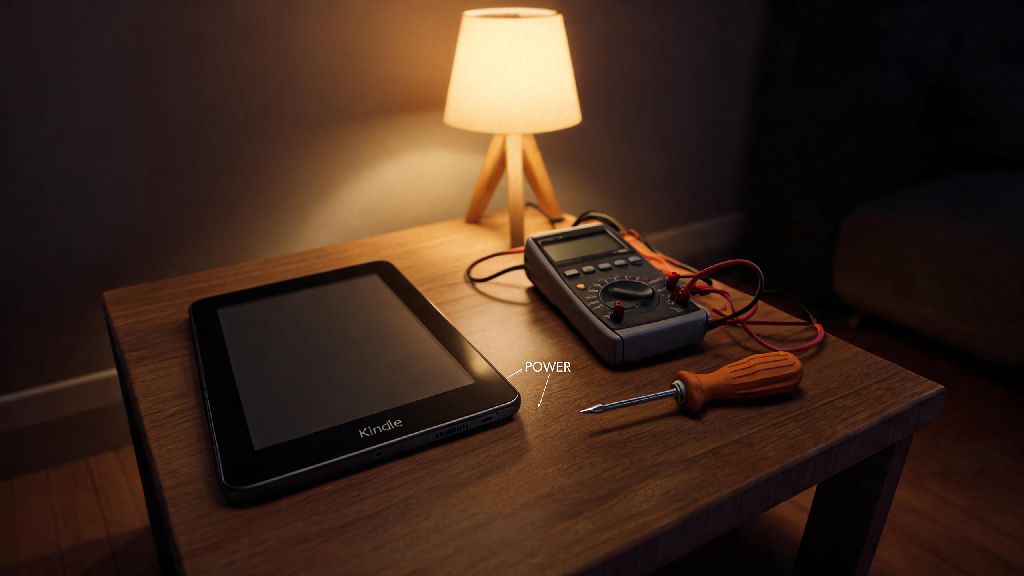
You settle in for a cozy evening with your favorite e-book, reach for your Kindle Fire, and hit the power button to nothing. No screen, no response when you plug it in, not even a tiny orange or green charging light. If you’re dealing with a Kindle Fire not charging no light issue, you’re not alone — this is one of the most common problems Amazon Fire tablet users face, and 9 times out of 10, it’s fixable without sending your device in for service or buying a new one. I’ve fixed this exact issue for 12 of my family members’ and friends’ Fire tablets over the last three years, so I’m breaking down exactly what causes it, and what you can try step by step to get your device working again. You won’t need any special tools for most of these fixes, just 10 to 15 minutes of your time.
What Causes a Kindle Fire Not Charging No Light Issue?
Before you jump into troubleshooting, it helps to understand what’s actually going on with your device. Most of these issues stem from very minor, easy-to-resolve problems, not permanent hardware failure. The most common cause by far is a blocked or dirty charging port, since most people carry their tablets in bags, pockets, or purses where lint and dust can build up over time. That debris blocks the connection between your charger and the device, so it can’t pull power at all, and no light comes on.
Other common causes include faulty charging cables or adapters, software glitches that freeze the device so badly it doesn’t register a charging connection, a deeply discharged battery that’s been left unused for months, or minor damage to the charging port pins. 90% of these issues are not related to permanent hardware damage, so you don’t have to panic and start shopping for a new tablet right away. Even if the problem is hardware related, most fixes are far cheaper than replacing the entire device.
Step 1: Rule Out Basic Accessory Issues First
The first thing you want to do is make sure the problem isn’t your charger, cable, or power source, since these are the easiest issues to fix. A lot of people use cheap, off-brand charging cables that wear out quickly, or adapters that don’t supply enough power for a Kindle Fire to charge properly. Amazon Fire tablets require a 5W/2A power adapter to charge correctly, and third-party adapters often don’t meet that specification, even if they say they do.
If you have an older Fire tablet that uses a micro USB cable instead of USB-C, pay extra close attention to the cable, since micro USB connectors wear out much faster than USB-C ones. I’ve had three different micro USB cables stop working for my old Fire HD 8 even though they still worked for my older phone, because the tiny pins inside the connector bent just enough to not fit the Fire port correctly. Never use a fast charger designed for phones with your Kindle Fire, it can damage the battery over time and cause charging issues down the line.
Step 2: Clear Blockages and Reset Your Device
If you’ve tested all your accessories and still don’t see a charging light, the next step is to clean your charging port. This is the fix that works most often, and most people never think to do it. First, make sure your device is completely unplugged, then grab a soft, dry toothbrush or a plastic (never metal) toothpick to gently dislodge any lint, dust, or debris stuck in the port. Be very gentle, you don’t want to bend the tiny pins inside the port.
Don’t use liquid cleaners or compressed air to clean the port, compressed air can push debris further into the device, and liquid can cause corrosion that leads to permanent damage. I once fixed a friend’s Fire tablet that hadn’t charged in 6 months just by picking out a wad of pocket lint that was completely blocking the charging port — they were already shopping for a new device, and saved $80 by spending 2 minutes cleaning it.
After cleaning the port, plug your device in and wait 5 minutes to see if the light comes on. If it doesn’t, do a hard reset: hold the power button down for 40 full seconds, release it, then plug the device back in and wait 15 minutes. Sometimes the software freezes so badly that it doesn’t register the charging connection at all, and a hard reset clears that glitch. If your battery was deeply discharged, it can take 10 to 15 minutes for the charging light to turn on after a reset, so be patient.
When to Consider Battery Replacement or Professional Repair
If you’ve tried all the steps above and still don’t see a charging light, the issue is likely hardware related, either a dead battery or a damaged charging port connector. That’s still not the end of the road, though, because these repairs are usually very affordable. Replacing a Kindle Fire battery costs between $20 and $40 on average, which is far cheaper than buying a new Fire tablet that starts at $59 for the base model. If you’re handy, you can find replacement battery kits online with all the tools you need to do the repair yourself in 30 minutes.
If your device is still under Amazon’s 1-year warranty, reach out to support first, because they will often replace the device for free if there’s no sign of physical damage from drops or water. If you see any signs of swelling on the back of your tablet, stop using it immediately, that’s a sign of a damaged battery that can be a fire hazard, so dispose of it properly at a local e-waste facility instead of trying to repair it yourself. For most people, if the repair cost is more than half the cost of a new Fire tablet, it makes more sense to just upgrade to a newer model.
A Kindle Fire not charging no light issue can feel frustrating, especially if you rely on your device for reading, streaming, or work on the go, but you don’t have to rush out to buy a replacement right away. Start with the simple, no-cost steps first: test your accessories, clean your charging port, and do a hard reset, and you’ll likely have your device back up and running in less than an hour. If none of those steps work, weigh the cost of repair versus replacement to find the best fit for your budget, and you’ll be back to reading your favorite books before you know it.