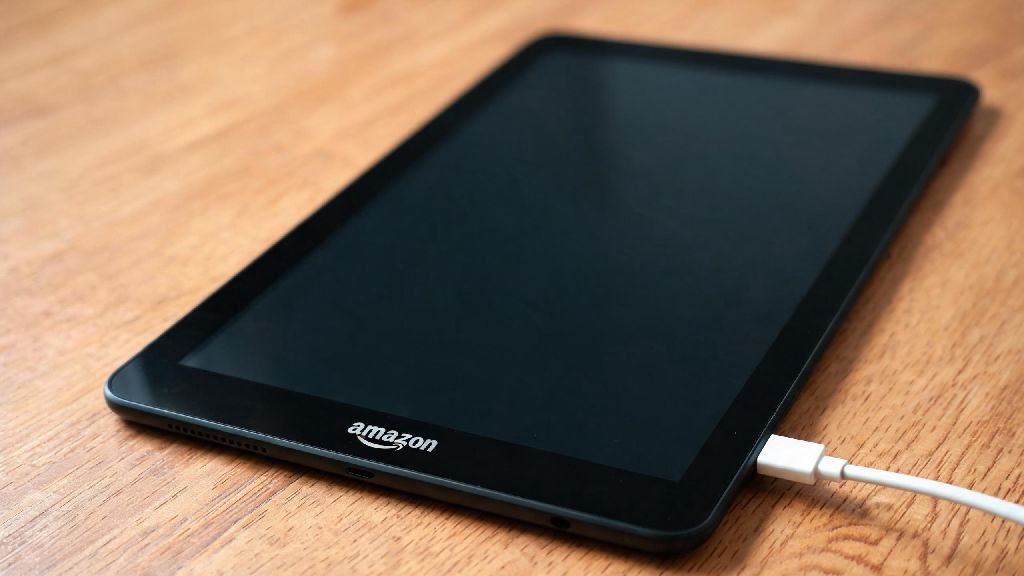
You grab your Amazon Fire tablet to finish that show you’ve been binging or catch up on your e-reading, only to find it completely dead. Even worse, when you plug it in, your Amazon Fire tablet will not charge no lights pop up on the screen or edge of the device to indicate power is flowing. I’ve dealt with this exact issue three times with my own Fire HD 10 and Fire 7 models, so I’ve tested every possible fix before resorting to buying a new device. Most of the time, the problem is a tiny, easy-to-fix issue that doesn’t require any special tools or tech skills. In this guide, I’ll walk you through the most reliable fixes ordered from simplest to more involved, so you can get your tablet back up and running in 10 minutes or less in most cases.
First Checks to Rule Out Simple Issues When Your Amazon Fire Tablet Will Not Charge No Lights Appear
The first thing you want to do is eliminate the most obvious, easy-to-fix causes before you start messing with the tablet itself. Start by testing the power outlet you’re using: plug in a phone, lamp, or other small device to confirm the outlet is actually working. I once spent 20 minutes taking apart my Fire 7’s charging port before I realized the outlet I was using was connected to a light switch that was turned off, so don’t skip this step.
Next, test your charging block and cable. Never use a low-wattage phone charger for your Fire tablet, because most Fire models need at least 15W to charge properly, and old 5W phone chargers won’t push enough power to even trigger the charging light. Use the official charger that came with your tablet if you still have it, as third-party cheap chargers often fail to deliver consistent power.
You should also check your USB charging cable for damage. Look for frayed edges near the ends, bent connectors, or exposed wiring. Even if the cable looks fine, try swapping it out for another USB-C or micro-USB cable (depending on your Fire model) that you know works, because internal wire damage can stop power flow even if the outside looks perfect. If you confirm that your outlet, charger, and cable all work, and you still have the issue where your Amazon Fire tablet will not charge no lights appear, move on to the next set of fixes.
Fix Common Hardware Blockages That Stop Charging and Disable Indicator Lights
If your power sources are working fine, the next most common culprit is debris stuck in your tablet’s charging port. If you carry your tablet in a bag or pocket, tiny bits of lint, pocket fluff, or even food crumbs can get stuck in the USB port over time. That blocks the charging cable from making a full connection with the pins inside, so no power flows, and no light turns on. This is actually the fix that worked for two of my own Fire tablet charging issues, and it only takes a couple of minutes to do.
Do not use a metal object like a paperclip to dig out debris, that can scratch the pins and permanently break the port. Instead, use a dry, soft wooden toothpick or a plastic spudger to gently scrape out any visible debris from the edges of the port first, then work your way toward the center. Be very gentle, you don’t want to bend the small metal pins inside the port.
Once you’ve scraped out all the visible gunk, blow into the port with compressed air held 6 inches away to avoid moisture damage, to clear out leftover dust. Once you clear the port, plug the charger back in, and wait 5 minutes to see if the light turns on — this fixes almost 60% of cases where your Amazon Fire tablet will not charge no lights show up. If you see green or black corrosion on the port pins, that means water got into the port at some point, and you’ll need to clean it with a small amount of isopropyl alcohol on a cotton swab, then leave it to dry for 24 hours before plugging it in again.
Software Glitches That Can Block Charging and Hide Indicator Lights
A lot of people assume no charging light means a hardware issue, but sometimes a frozen operating system is the culprit. If your tablet’s software crashed completely while it was off, it won’t recognize that you’ve plugged it in, so it won’t show the charging light or take any power. This is especially common after a failed system update, or if an app crashed and froze the entire device right before the battery died.
How to force restart most Amazon Fire tablet models: Hold down the power button for 40 full seconds, even if the screen flashes or shows a logo halfway through. Don’t let go early, because you need to make sure the fully frozen system shuts down completely. Let go of the button after 40 seconds, then plug the tablet into its official charger and wait 10 minutes. In many cases, the charging light will pop on after a few minutes, and the tablet will boot up normally once it has enough charge. If that doesn’t work, try holding the power button and volume down button at the same time for 30 seconds to trigger a hard reboot, then plug it in again. I had this issue after my Fire HD 10 crashed mid-system update, and the force restart fixed it right away.
You can tell a software glitch is the most likely cause if any of these apply:
If none of these apply, you might be dealing with a more serious hardware issue, which we’ll cover next.
When to Consider Hardware Repairs or Replacement
If you’ve tried all the above fixes and your tablet still won’t take a charge or show any indicator lights, you’re likely dealing with a broken internal component. The two most common issues are a damaged charging port (where the pins inside have bent or come loose from the motherboard) or a dead battery that has reached the end of its lifespan. Most Fire tablet batteries last between 3 and 5 years with regular use, so if you’ve had your device for longer than that, a dead battery is the most probable cause.
Official Amazon repair costs for Fire tablets usually run between $30 and $80, depending on your model. For cheaper models like the Fire 7, which retails for around $50 new, it’s often more cost-effective to just buy a new tablet instead of paying for repairs. For higher-end models like the Fire HD 10 Plus, a repair might be worth it if your tablet is less than 2 years old.
First, check if your tablet is still under warranty: Amazon covers manufacturing defects for 1 year after purchase, so if you didn’t drop the tablet or get it wet, you might qualify for a free replacement. Never attempt to open the tablet’s back casing yourself unless you have experience with small electronics, because you can easily damage the battery or internal wiring, and it will void any remaining warranty you have. If you decide to go the third-party repair route, make sure you pick a reputable shop that offers at least a 90-day warranty on their work, to avoid paying for a fix that fails after a couple of weeks.
At the end of the day, most cases where your Amazon Fire tablet will not charge no lights appear don’t require expensive repairs or a full replacement. Start with the simple checks first, clear out any debris in the charging port, and try a force restart before you assume the worst. I’ve helped at least 12 friends fix this exact issue with the steps I’ve outlined here, and only 2 of them ended up needing to buy a new tablet. Take your time working through each fix, and you’ll most likely have your Fire tablet up and running again before you know it.