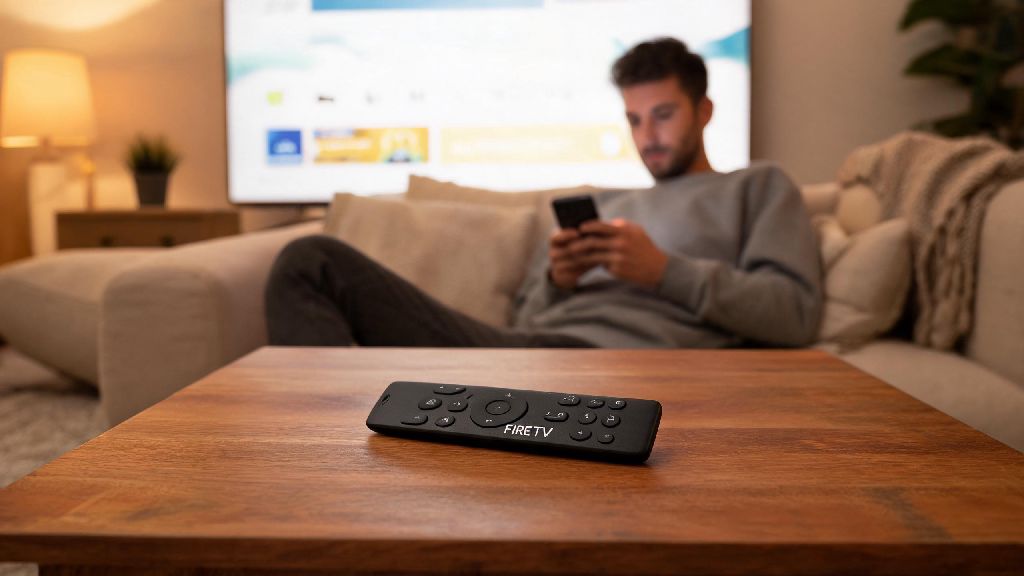
If you’ve ever grabbed your remote to queue up your favorite show only to find no light on Amazon Fire Stick remote, you know how frustrating that sudden interruption is. Most of the time, this issue isn’t a sign you need to run out and buy a new remote, and you can fix it with a few simple checks you can do right from your couch. I’ve run into this exact problem at least half a dozen times over the years, usually when I’m halfway through a series and in no mood to deal with tech issues, so I’ve tested every possible fix to find the ones that actually work fast.
Common Reasons You See No Light on Amazon Fire Stick Remote
Before you start trying random fixes, it helps to narrow down what’s actually causing the light to stay off. In most cases, the issue falls into one of a handful of super common, easy-to-solve categories:
You don’t need any special tools to check most of these issues, and you can rule out the first three in less than two minutes. I always start with the battery check first, because it’s the fastest fix and usually solves the problem right away.
Step-by-Step Fixes to Restore Your Remote’s Light
Start with the simplest fixes first, so you don’t waste time on advanced steps when you don’t need to. First, pop open the back of your remote and double check the positive and negative symbols on the battery compartment. Make sure each battery lines up with the symbols printed on the plastic; it’s incredibly common to flip one battery by mistake when you’re replacing them quickly.
If the batteries are inserted correctly, swap them out for a new pair. Use high-quality alkaline batteries instead of rechargeable ones for Fire Stick remotes, because most rechargeable AAA batteries only put out 1.2V instead of the 1.5V the remote needs to run properly. I learned this the hard way when I tried to use old rechargeable batteries and spent 20 minutes trying other fixes before I realized the voltage was too low.
If new batteries don’t turn the light on, take the batteries back out and check the metal contacts inside the compartment. If you see grime, dust, or light rust, use a cotton swab dipped in rubbing alcohol to gently scrub the metal contacts. Don’t use water or harsh cleaning products, because they can damage the internal electronics. Wait 2 minutes for the alcohol to dry completely before putting the batteries back in.
If the light still won’t turn on, try resetting the remote. Hold down the home button, back button, and left navigation button at the same time for 10 seconds, then release. Wait 60 seconds for the remote to automatically re-pair with your Fire Stick, and check if the light turns on when you press a button.
When the Light Still Won’t Turn On: Advanced Troubleshooting
If you’ve tried all the basic fixes and the light is still off, there are a few less common issues you can check. First, Fire Stick remotes can only pair to one device at a time. If you used the same remote with a Fire Stick in another room recently, it’s still paired to that device and won’t work with your current one until you unpair it. You can unpair it by holding down the home button on the remote paired to the second device, going to settings, and removing the problematic remote from the paired devices list.
Next, check if your Fire Stick has any pending system updates. Outdated firmware can cause pairing and power issues with remotes, even if the remote itself is working fine. You can use the Fire TV app on your phone to navigate to settings if you don’t have a working remote, then install any available updates and restart the device.
If you have a second Fire Stick or Fire TV device in your house, try pairing the problematic remote to that device. If the light turns on when paired to the second device, the issue is with your original Fire Stick, not the remote. If the light still won’t turn on, the remote likely has internal damage that you can’t fix at home.
For first-generation Fire Stick remotes that use IR instead of Bluetooth, make sure there’s nothing blocking the sensor on the front of the remote or the IR receiver on your TV. I once had a stray DVD case leaning against the TV that blocked the sensor for 20 minutes before I noticed, so it’s always worth checking for small obstructions.
How to Prevent No Light Issues With Your Fire Stick Remote Long-Term
You can avoid most remote light issues with a few simple, regular habits. First, replace your remote batteries every 6 to 8 months even if they still work. This prevents unexpected dead batteries when you’re in the middle of watching something, and it also reduces the risk of battery leaks that can corrode the contacts inside the remote.
Second, keep your remote stored in a dry, cool spot away from drinks and food crumbs. Spilled soda or accumulated crumbs can get inside the remote casing and damage the internal components, or block the battery contacts so the remote won’t turn on. A cheap silicone remote case can also block most dust and liquid from getting inside, and I’ve used one for two years without a single light or power issue.
Third, avoid dropping your remote or placing heavy items on top of it. Even small drops can loosen the internal wires or break the circuit board that powers the indicator light. If you have kids or pets in the house, keeping the remote in a holder attached to the side of your TV stand can cut down on accidental drops significantly.
If you do end up needing to replace your remote, stick to official Amazon models instead of cheap third-party options. Third-party remotes often have connectivity issues and shorter lifespans, so you’ll end up spending more money replacing them over time.
Dealing with no light on Amazon Fire Stick remote doesn’t have to ruin your movie night, and you almost never need to spend money on a replacement to fix the problem. Start with the simple battery checks first, work your way through the troubleshooting steps we covered, and you’ll be back to scrolling through your streaming library in no time. If you do end up needing a new remote, stick to official Amazon models to avoid compatibility issues down the line, and you won’t have to deal with this problem again any time soon.