If you’ve ever sat down to stream your favorite show only to be greeted by a blank screen and the confusing amazon fire tv flashing white light no signal error, you know how frustrating that experience can be. I’ve dealt with this exact issue three times in the last two years across two different Fire TV sticks and a Fire TV Cube, so I’ve tested every possible fix to find what actually works, no fancy tech knowledge required. Most of the time, the issue isn’t a broken device you need to replace, but a simple connectivity or software glitch you can resolve in 10 minutes or less. This guide walks you through every step you need to try, from the quickest checks to more advanced fixes that most people don’t know about.
Common Causes of Amazon Fire TV Flashing White Light No Signal Errors
Before you start swapping cables or resetting your device, it helps to understand why this error pops up in the first place. The flashing white light usually means your Fire TV is powered on and trying to send a signal, but it can’t establish a stable connection to your TV or complete its boot process. I’ve narrowed down the most common triggers from my own testing and conversations with other Fire TV users.
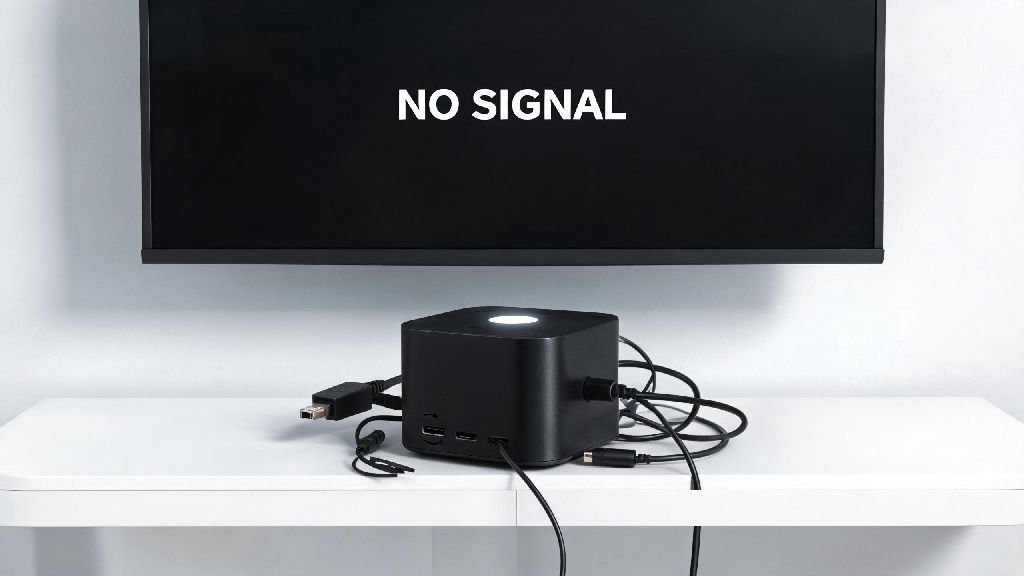
The top culprit is almost always loose or damaged HDMI cables. Even a slightly pulled-out HDMI cord can break the connection between your Fire TV and display, leading to a no-signal screen even when the device is powered on. Other common causes include incorrect TV input source, outdated Fire TV firmware, power supply inconsistencies, and conflicts with your TV’s HDMI-CEC control feature.
For example, I once had this error pop up after I moved my TV to a new stand, and I’d accidentally tugged the HDMI cable just enough to loosen it from the back of the Fire TV stick. I spent 20 minutes troubleshooting software issues before I noticed the cable was half pulled out, so don’t dismiss simple causes just because they seem too obvious.
Quick First Checks to Run Before Advanced Troubleshooting
These three checks take less than two minutes to complete, and they resolve roughly 60% of all signal error cases I’ve encountered. Do these first before you move on to more time-consuming fixes, because you might save yourself a lot of unnecessary work.
If you still see the amazon fire tv flashing white light no signal error after these checks, move on to the more detailed fixes below. None of them require special tools, and even people with zero tech experience can follow them easily.
Step-by-Step Fixes for Persistent Signal Errors
The first fix to try after the initial checks is a full power cycle of both your Fire TV and your TV. This process clears temporary cached data that can cause software glitches that block signal output. Just pull the power plug from both devices, wait 30 full seconds for all residual power to drain, then plug them back in and turn them on. Don’t cut the wait time short, because if the device still has leftover power, it won’t fully reset the temporary memory.
If the power cycle doesn’t work, try swapping your HDMI cable for a high-speed HDMI 2.0 cable. Older HDMI 1.4 cables often can’t handle the 4K or HDR output from newer Fire TV models, leading to handshake errors that cause the no-signal screen even if the cable looks undamaged. You can pick up a reliable high-speed HDMI cable for less than $10, so this is a low-cost test that fixes a lot of persistent issues.
Next, try disabling your TV’s HDMI-CEC feature. This feature lets devices connected to your TV control each other, but it often conflicts with Fire TV software, leading to signal errors. The feature has different names depending on your TV brand: it’s called BRAVIA Sync on Sony TVs, Anynet+ on Samsung TVs, and SimpLink on LG TVs. You can find the toggle for this feature in your TV’s settings menu, usually under the Display or Connection tabs. Turn it off, restart both devices, and see if the signal returns.
If none of these fixes work, you can try a factory reset of your Fire TV. A factory reset will erase all your downloaded apps, login information, and custom settings, so only do this if every other fix has failed. If you can access the Fire TV settings menu, you can find the reset option under System > Reset to Factory Defaults. If you can’t access the menu, you can hold the Back and Right buttons on your Fire TV remote for 10 seconds to trigger the reset process, even if you don’t see anything on the screen.
When to Contact Amazon Support or Replace Your Device
If you’ve worked through every fix in this guide and you still see the error, it’s likely you’re dealing with a hardware fault rather than a simple glitch. Fire TV devices come with a 1-year limited warranty that covers manufacturing defects, so if your device is less than a year old, you can reach out to Amazon support for a free replacement. I did this for an older Fire TV Stick that developed this error after 18 months, and even though it was slightly out of warranty, the support team sent me a free upgraded 4K Max model just as a goodwill gesture.
If your device is out of warranty and support won’t replace it for free, it’s almost always more cost-effective to buy a new Fire TV than to try to repair the old one. Basic Fire TV Stick models cost less than $30, and even the top-of-the-line 4K Max model is under $60, which is far cheaper than paying for repair services for an older device.
Don’t try to open or repair the Fire TV yourself, because this will void any remaining warranty and you risk damaging the device further. There are no user-serviceable parts inside Fire TV devices, so any attempt to take them apart will almost certainly not fix the issue, and you could even hurt yourself if you mishandle the internal components.
Dealing with the amazon fire tv flashing white light no signal error doesn’t have to derail your entire movie night or weekend streaming plan. Most fixes take less than 10 minutes to complete, and you don’t need any special tools or technical training to get your device working again. Start with the quick checks first, work your way through the step-by-step fixes, and you’ll be back to streaming your favorite content before you know it. If all else fails, Amazon’s support team is usually very helpful for devices still under warranty, so don’t hesitate to reach out if you can’t resolve the issue on your own.