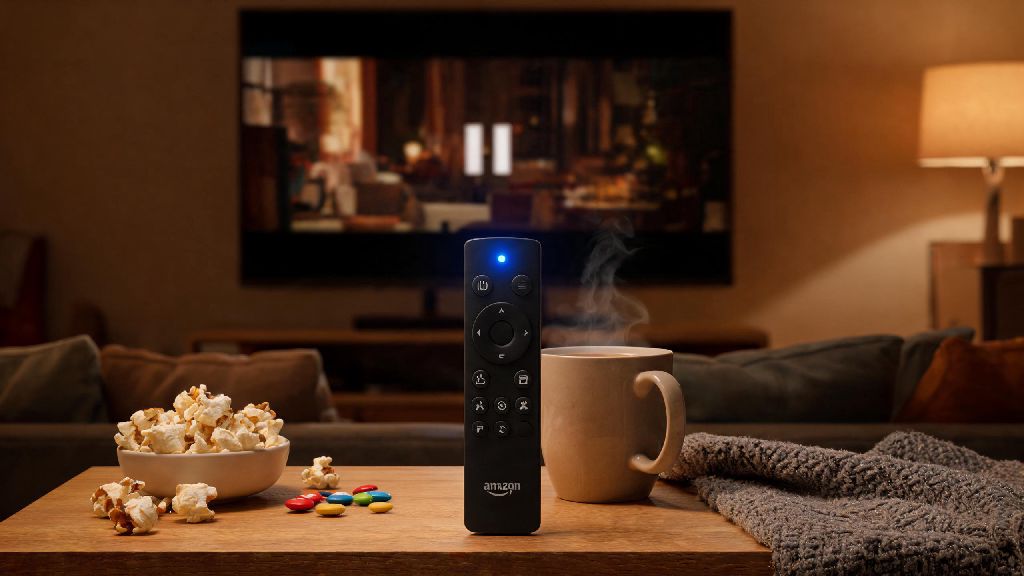
There’s nothing more frustrating than settling in for a movie night or your favorite binge show, pressing a button on your Fire Stick remote, and getting no response at all. If you notice the amazon fire stick remote no blue light issue when you press buttons, you’re not alone – this is one of the most common problems Fire Stick users face, and most of the time it’s far easier to fix than you think. I’ve dealt with this exact issue at least a dozen times across three different Fire Sticks in my house, from the basic HD model to the 4K Max, so I’ve compiled every working fix I’ve tested, no fancy tech skills required. You won’t have to call customer support or spend hours scrolling through forum threads to get your remote working again.
Why Your Amazon Fire Stick Remote No Blue Light Issue Happens in the First Place
The blue light on your Fire Stick remote serves two main purposes: it confirms the remote is receiving power, and it signals that it’s sending a command to your Fire Stick device. When it doesn’t light up at all, the problem almost always traces back to one of a handful of common causes, most of which have nothing to do with a broken remote. Dead or incorrectly inserted batteries are the most common culprit, but pairing glitches, blocked sensors, or even temporary power surges can also stop the light from turning on. I once spent 20 minutes trying to reset my entire Fire Stick before realizing I’d put the batteries in backwards after swapping them out, so don’t skip the most basic checks first. It’s also worth noting that some remotes have the blue light dimmed by default, so make sure you’re looking at the top of the remote in a dimly lit room before you assume there’s a problem.
Quick Pre-Checks to Run Before Advanced Troubleshooting
Before you start resetting devices or re-pairing remotes, run through these super fast checks to rule out the simplest fixes first. Always use high-quality alkaline or fully charged rechargeable batteries for your remote, as cheap dollar store batteries often die within a few weeks or don’t supply enough power to turn on the LED light. These checks take almost no time, and they resolve more than half of all no blue light cases immediately.
These checks take less than 2 minutes, and I’ve had them fix the issue for friends who were convinced they needed to buy a whole new remote. If you spot leaking batteries inside the remote, make sure you wipe the metal contact points thoroughly before inserting new ones, as corrosion can block power from reaching the remote’s internal components. If none of these checks get the blue light working, move on to the next set of fixes.
Tested Fixes for Persistent No Blue Light Remote Problems
If the pre-checks didn’t resolve the issue, the next steps will clear temporary glitches and fix connection problems between the remote and your Fire Stick. The first and most effective fix is a full power cycle of both devices, which clears any residual power that might be causing a software glitch. Start by removing the batteries from your remote, then unplug your Fire Stick from its HDMI port and its power source. Waiting the full 60 seconds is critical here – if you plug everything back in too soon, the residual power won’t drain, and the glitch will remain. After the minute passes, plug your Fire Stick back into your TV and power source, wait for it to fully load to the home screen, then reinsert the batteries into your remote. Press the home button, and you should see the blue light flash to confirm it’s connected.
If the power cycle doesn’t work, you’ll need to re-pair the remote manually. Sometimes the connection between the remote and Fire Stick gets dropped after a software update, or if you’ve paired multiple remotes to the same device. To re-pair, make sure your Fire Stick is on the home screen, then hold down the Home button on your remote for 10 to 15 seconds. You should see a pop-up notification on your TV screen confirming the remote is paired, and the blue light should flash three times to signal it’s connected. If that doesn’t work, try unpairing any extra remotes you don’t use regularly, as too many paired devices can cause connection conflicts that stop the remote from working properly.
If you see visible corrosion from leaking batteries on the metal contact points inside the remote, you can fix this easily without replacing the whole remote. Dip a cotton swab in a small amount of rubbing alcohol, squeeze out any excess so the swab is damp not dripping, then gently scrub the metal contacts to remove the corrosion. Let the remote sit for 10 minutes to dry fully, then insert new batteries and test it. I’ve saved three separate remotes from the trash using this trick, including one that had been left with dead batteries in a drawer for over a year. If you dropped the remote recently, you can also gently tap the sides of the remote against your palm to dislodge any loose internal components that might be blocking the power connection to the LED light.
When It's Time to Replace Your Amazon Fire Stick Remote
Most of the time, the fixes above will get your remote working again in a few minutes, but there are some cases where the remote is permanently damaged and needs to be replaced. If your remote was exposed to water, extreme heat, or was crushed under a heavy object, the internal circuit board is likely damaged beyond repair, and no amount of troubleshooting will get the blue light working again. If you've tried all the steps above with multiple new battery sets and still get no response or blue light from the remote, that’s a clear sign it’s time to pick up a replacement. You don’t have to buy an official Amazon remote if you’re on a budget – third-party Fire Stick remotes cost as little as $10, and most work just as well as the official versions for basic streaming.
That said, I usually recommend sticking with official Amazon remotes if you can spare the extra $10 or so. They pair faster, have better battery life, and support all the extra features like voice control and quick access buttons for popular streaming apps. If you only use your Fire Stick for basic watching, a third-party remote will work perfectly fine, just make sure it’s labeled as compatible with your specific Fire Stick model before you buy it. You don’t need to buy a whole new Fire Stick device if your remote breaks, either – all Fire Stick models support replacement remotes, even older ones that are several years old.
At the end of the day, the amazon fire stick remote no blue light issue is almost never a serious problem, and you can fix most cases in under 10 minutes with the steps above. Don’t panic and order a new remote right away – start with the simple pre-checks, move through the power cycle and re-pairing steps, and you’ll likely be back to streaming your favorite content in no time. If you do end up needing a replacement, there are plenty of affordable options available that work just as well as the remote that came with your device. The next time your remote stops lighting up, you’ll know exactly what to do without wasting time searching for fixes online.