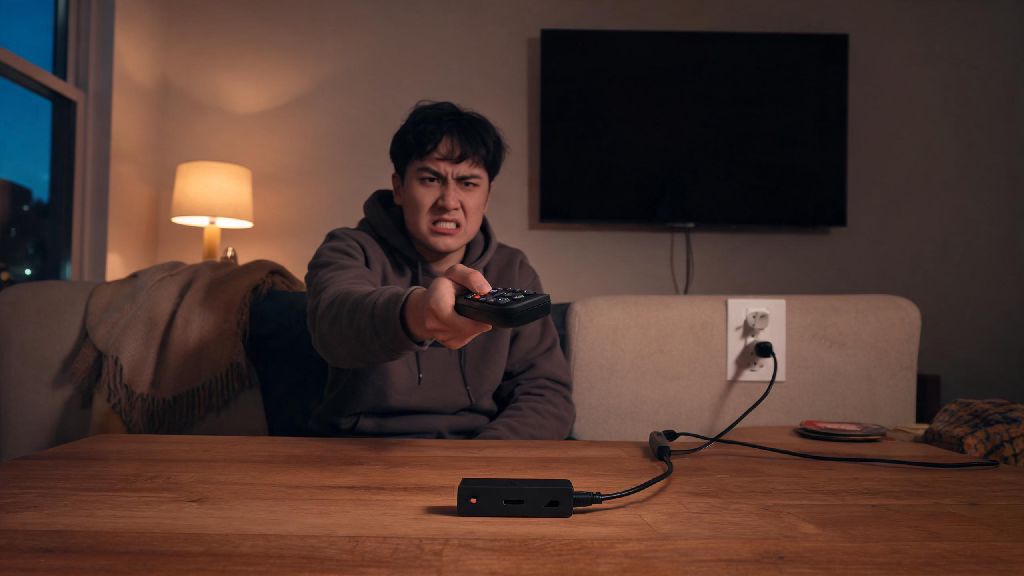
You settle in for a cozy night of binging your favorite show, grab the remote to turn on your Fire Stick, and notice something off: no little white or blue light glowing on the device. That frustrating amazon fire stick no lights issue is more common than you might think, and it doesn’t always mean you have to run out and buy a new device. I’ve dealt with this exact problem three times in the last two years with my own Fire Stick 4K and a friend’s older Lite model, so I’ve tested every possible fix to figure out what works and what’s a waste of time. This guide will walk you through the most common causes and step-by-step fixes you can try in 10 minutes or less, no fancy tools required.
What Causes the Amazon Fire Stick No Lights Issue?
Most people assume a dead device is the first cause, but 90% of the time the issue is something super simple you can fix at home. Power supply problems are the most frequent culprit, followed by port damage, software glitches, or even a faulty HDMI connection. I once spent 20 minutes trying to reset my Fire Stick before realizing the USB cable I used to charge it was frayed and no longer delivering enough power. That means you don’t have to jump straight to contacting Amazon support right off the bat. The most common root causes are power supply failures, damaged HDMI or USB ports, temporary software glitches, and overheating from being tucked behind a TV with no airflow.
Quick Pre-Checks to Run Before Advanced Troubleshooting
Before you start messing with settings or replacing parts, run these 3 quick pre-checks to rule out the simplest issues first. I always do these first whenever a friend asks me to look at their non-working Fire Stick, and half the time one of these fixes the problem immediately.
None of these worked? Don’t worry, we have more targeted fixes to try next.
Step-by-Step Fixes for Persistent Power and Light Issues
If the pre-checks didn’t resolve the problem, it’s time to dig a little deeper into the most common fixes that work for the amazon fire stick no lights issue. Start with the first one and work your way down, since they’re ordered from easiest to most involved. First, test the power supply and cables. The USB cable that comes with the Fire Stick is notoriously flimsy, and it wears out quickly if you move the device around a lot. Try swapping it out for a different micro-USB or USB-C cable (depending on your Fire Stick model) and a different power adapter. Always use the official Amazon power adapter that came with your device, because third-party adapters often don’t deliver the correct voltage to power the Fire Stick properly.
Next, test the Fire Stick on a different TV or HDMI port. Sometimes the HDMI port on your TV is damaged or not delivering enough power, even if other devices work on it. Plug the Fire Stick into a different port, or a different TV entirely, to see if the light turns on. If it does, you know the issue is with your TV, not the Fire Stick itself. If that still doesn’t work, try a hard reset of the device. Even if there’s no light, you can still reset most Fire Stick models by holding down the back button and the right side of the navigation circle for 15 seconds while the device is plugged in. Wait one full minute after releasing the buttons, then check if the light turns on. I’ve had this fix work for a Fire Stick that hadn’t lit up in three weeks, so don’t skip this step even if it feels like it won’t do anything.
When to Contact Support or Replace Your Fire Stick
Most of the time, one of the fixes above will get your Fire Stick up and running again, but there are rare cases where the device is too damaged to repair. First, check if your Fire Stick is still under warranty. All new Fire Sticks come with a 1-year limited warranty that covers manufacturing defects, so if you haven’t had the device for more than a year, Amazon will usually replace it for free, even if you don’t have the original receipt. Don’t try to open the Fire Stick to repair it yourself, because this will void your warranty immediately and you won’t be eligible for a free replacement.
If your device is out of warranty, calculate if it’s worth paying for repairs. Most repair shops charge $30 to $50 to fix power port issues, and a new basic Fire Stick Lite only costs around $30, so it’s often cheaper to just buy a new device instead of repairing an older model. You should also consider replacing your device if it’s more than 5 years old. Older Fire Stick models stop receiving software updates after a few years, and they’re more prone to power and performance issues, even if you fix the no lights problem temporarily. You’ll get better performance and fewer bugs with a newer model, so it’s often a worthy small investment.
Dealing with the amazon fire stick no lights issue can throw a wrench in your evening plans, but it’s almost never a reason to panic. Most fixes take less than 10 minutes and require no special skills or tools, so you can get back to streaming your favorite shows before you know it. If you try all the fixes in this guide and still don’t see any light on your device, you can rest easy knowing replacement options are affordable and easy to find. Next time you run into this issue, start with the simple pre-checks first – you’ll save yourself a lot of time and frustration.