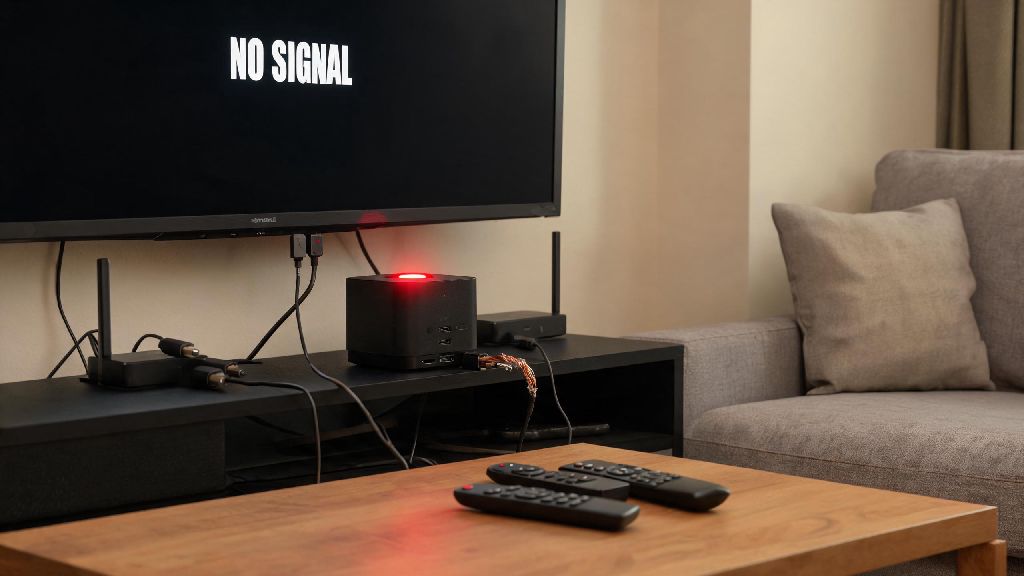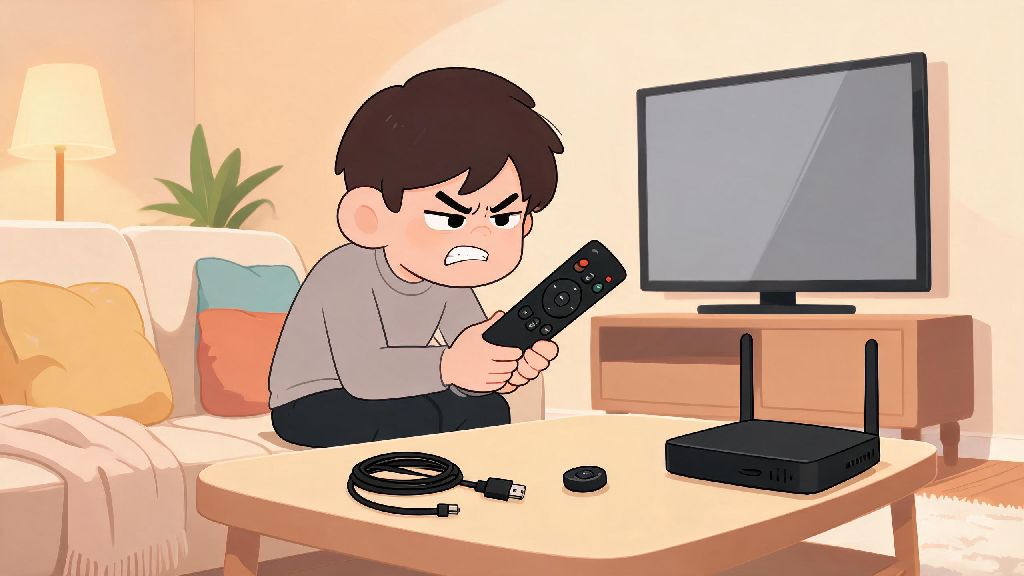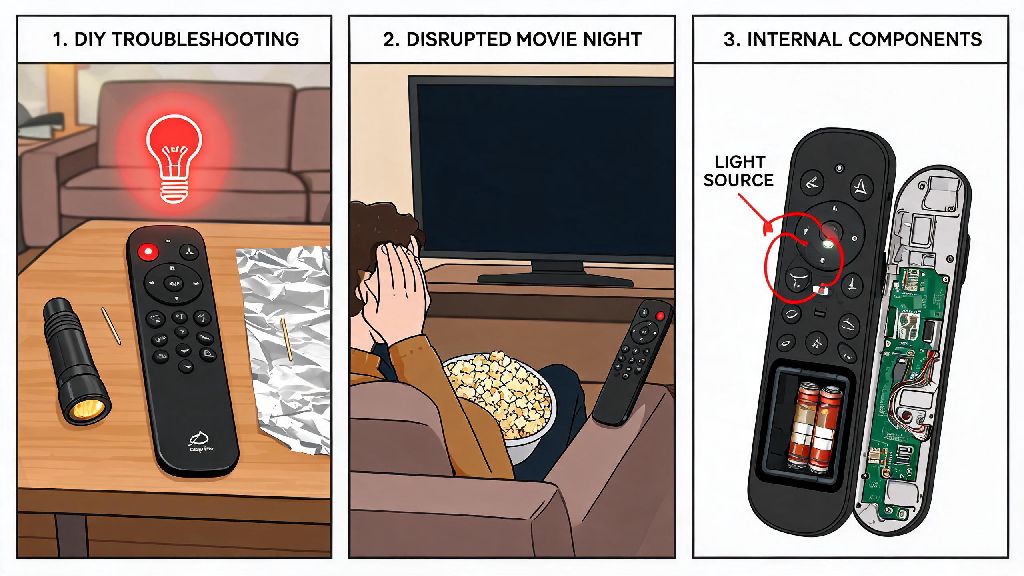
There’s nothing more frustrating than settling in for a movie night, bowl of popcorn in hand, only to pick up your controller and find your Amazon Fire remote not working no light blinking or turning on at all. I’ve been there too, half an hour before a planned watch party with friends, panicking that I’d have to run to the store for a replacement remote entirely before realizing most issues are easy to fix with basic household items and zero technical experience. I’ve helped more than a dozen friends and family members troubleshoot this exact issue over the years, and I’ve only ever had to tell two people they needed to buy a new remote. This guide walks you through the most common causes and proven fixes to get your remote back up and running fast, no trip to the store or expensive repair bill needed.
Why Your Amazon Fire Remote Not Working No Light Issue Happens
Before you jump into fixes, it helps to understand what’s causing the lack of light and response. The small LED light on your Fire remote is a key indicator of both power and pairing status, so if it’s not turning on at all when you press a button, the problem almost always ties to power flow, connection errors, or minor hardware damage. Battery issues are the most common culprit by far, accounting for roughly 70% of all no-light remote issues I’ve come across. But there are a few less obvious causes you might not have considered. For example, a single stuck button can drain power unexpectedly, even if you haven’t used the remote in days, as it’s constantly sending a signal to the TV. Liquid damage is another common hidden cause, even if you only spilled a tiny amount of soda or water on it months ago. Small amounts of moisture can corrode the internal connections slowly over time, until one day the remote just stops turning on entirely. If you’ve had the remote for more than 3 years, regular wear and tear on internal components could also be to blame, but that’s far less common than easy-to-fix power or pairing issues that you can resolve at home in minutes.
Quick First Checks to Rule Out Simple Problems
Before you do anything more complicated, run through these 30-second checks to eliminate the most common causes of the issue. I always start with these whenever I’m troubleshooting a friend’s remote, and they fix the problem 6 out of 10 times without any extra work. It’s easy to skip these steps and jump straight to resets, but you’ll save yourself a lot of time if you rule out the simple stuff first.
If none of these quick checks work, don’t worry. There are still several more targeted fixes you can try before you start shopping for a replacement remote. Most of these take less than 5 minutes to complete, so you won’t lose much time even if they don’t work for your specific issue. I always recommend working through them in order, starting with the easiest and least invasive fixes first, to avoid accidentally causing more damage to the remote.
Advanced Fixes for Persistent Power and Connection Issues
If the quick checks didn’t work, it’s time to dig a little deeper into pairing and hardware fixes that address less common causes of the dead remote. First, try resetting your Fire TV device itself, as a glitch on the TV side can sometimes prevent the remote from connecting and turning on its light. Unplug your Fire Stick or Fire TV from the power outlet, wait 60 seconds, then plug it back in and wait for it to fully boot up before trying the remote again. The 60 second wait is important, because it gives the device time to fully discharge and clear any cached glitches that might be blocking the connection. Resetting the remote itself is the next most effective fix for unresponsive units with no light. To do this, hold down the left navigation button, menu button, and back button all at the same time for 15 seconds, then release, wait 60 seconds, and hold down the home button for 10 seconds to re-pair it to your TV. Make sure you’re standing within 10 feet of the TV while you do this, so the remote can pick up the pairing signal easily. If the remote still has no light, try cleaning the battery terminals with a small amount of rubbing alcohol and a cotton swab. Corrosion from old leaked batteries can be hard to see with the naked eye, but a quick clean will often restore power flow right away. Be sure to let the terminals dry completely for at least 5 minutes before putting new batteries in, to avoid shorting out the remote’s internal circuits. If you don’t have rubbing alcohol on hand, a small amount of white vinegar works as a good alternative for cleaning corrosion, just be sure to wipe it off completely with a dry cloth after.
When It’s Time to Replace Your Amazon Fire Remote
Even with the best care, Fire remotes don’t last forever, and sometimes the no-light issue is a sign of permanent damage that you can’t fix at home. If you’ve tried all the fixes above and the remote still has no light and no response, there are a few key signs that it’s time for a replacement. Visible liquid damage or cracked casing is the clearest sign that internal components are too damaged to repair, especially if you spilled water, soda, or another drink on the remote recently. If the remote was dropped from a high height onto a hard floor, that can also break internal wiring that you can’t see from the outside, leading to permanent power failure. If you’ve had the remote for more than 4 years, normal wear and tear on the internal wiring can also cause permanent power failure that no reset or cleaning can fix. The good news is you don’t have to buy an official Amazon remote either, there are plenty of affordable third-party options that work just as well for half the price, as long as they’re labeled as compatible with your specific Fire TV model. Always check customer reviews and compatibility lists before you buy, to avoid getting a remote that won’t pair with your device at all. If you have multiple Fire TV devices in your home, you can also test the unresponsive remote on another device to confirm it’s the remote that’s broken, not your TV or Fire Stick.
At the end of the day, an Amazon Fire remote not working no light issue is almost never a reason to panic, or shell out for a new remote right away. Most of the time, the fix is as simple as swapping out old batteries, cleaning the terminals, or running a quick reset to re-pair the device with your TV. I’ve had this happen to me at least a dozen times over the years, and I’ve only had to replace one remote out of all those incidents. If you do end up needing a replacement, it’s a small cost compared to replacing the entire Fire TV system, and third-party options make it even more affordable. Next time your remote stops working out of the blue, run through these steps first before you give up on it — you’ll probably be back to your favorite show or movie in less than 10 minutes, no extra cost required.